

This guide will show you how to correctly save your progress in every version of PokePath TD:
Browser, Windows, Mac, and Linux.
Losing your save after hours of grinding, catching Pokemon, and clearing routes is extremely frustrating. This usually happens because of small mistakes—especially in the browser version, which does not safely auto-save like the PC versions.
In this guide, you’ll learn:
- How the save system really works
- The safest saving routine
- How to export and import saves
- Common problems and easy fixes
How the Save System Works
There are two types of saving in the game:
1. Auto Save
The game auto-saves when:
- You switch maps
- The game refreshes internal data
This is not always reliable in browsers.
2. Manual Save (Export)
Manual saving means:
- You export your save as a .txt file
- This file can be used on any device
- Browser
- Windows
- Mac
- Linux
This is the safest way to protect your progress.
Different Game Versions
Browser Version (Most Risky)
- Saves using browser cache
- Cache can be cleared anytime
- Most common version where saves are lost
Always export your save.
Windows / Mac / Linux Version (Safer)
- Saves directly to your device storage
- Very low chance of losing progress
- Still recommended to export backups
The Correct Saving Routine
Always follow this routine:
- Finish your current wave or farming
- Open Map (W) and switch to another route
- This forces the game to write data
- Go to Settings → Export Data
- Download your save file
This prevents almost all save-loss issues.
How to Export Your Save File
Step 1
Play the game and make some progress.
Step 2
Switch maps once to refresh and auto-save.
Step 3
Open Settings
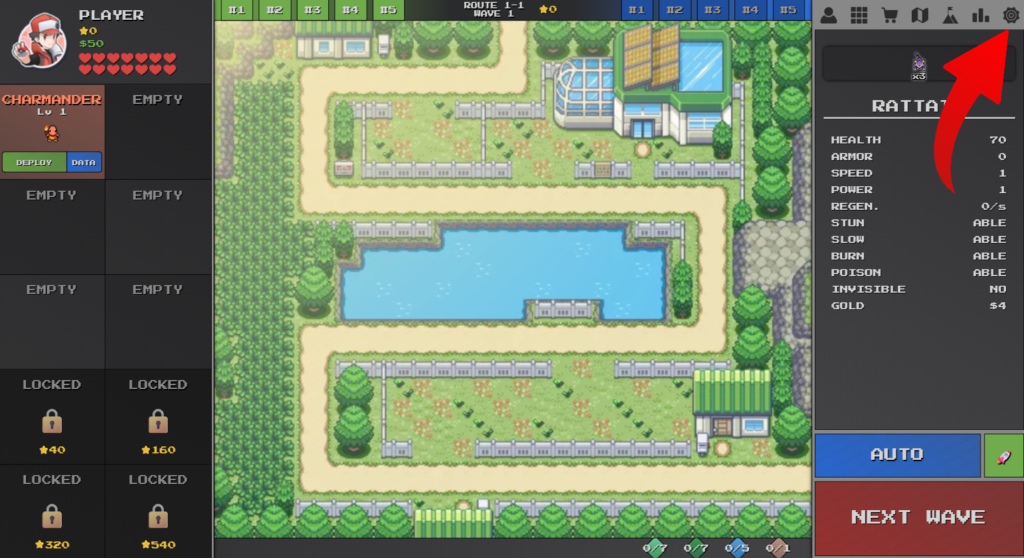
- Top-right corner
- Last icon
Step 4
Scroll to Data Section
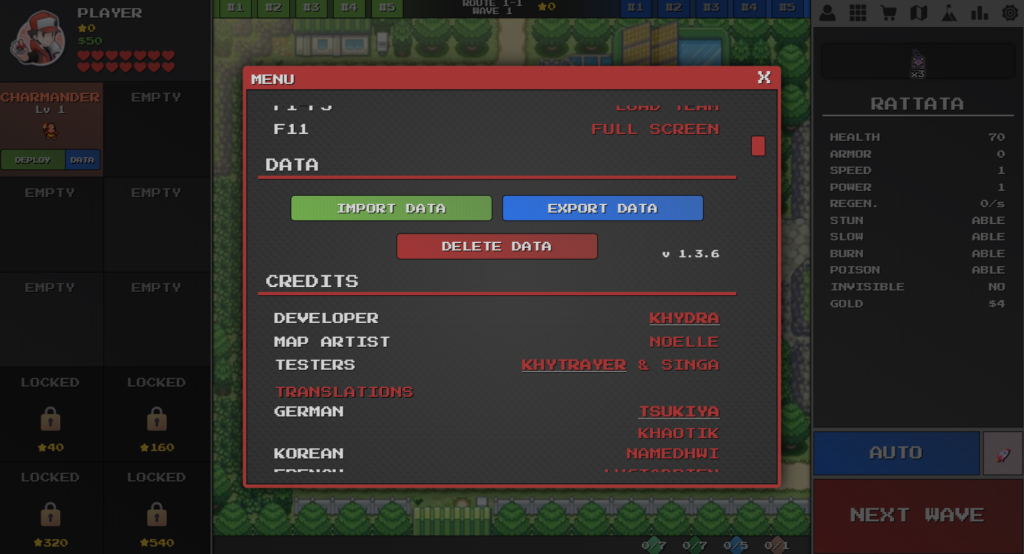
You will see:
- Import Data – Load a save
- Export Data – Backup your save
- Delete Data – Wipes everything
Step 5
Click Export Data
You will see two options:

- Download
- Copy
Always choose: Download
Copying creates a huge text that is easy to lose or damage.
Step 6
Choose a folder you can remember and save the file.
Now your progress is safe.
How to Import Your Save
Step 1
Open Settings
Step 2
Scroll to the Data Section
Step 3
Click Import Data
You will see two methods:
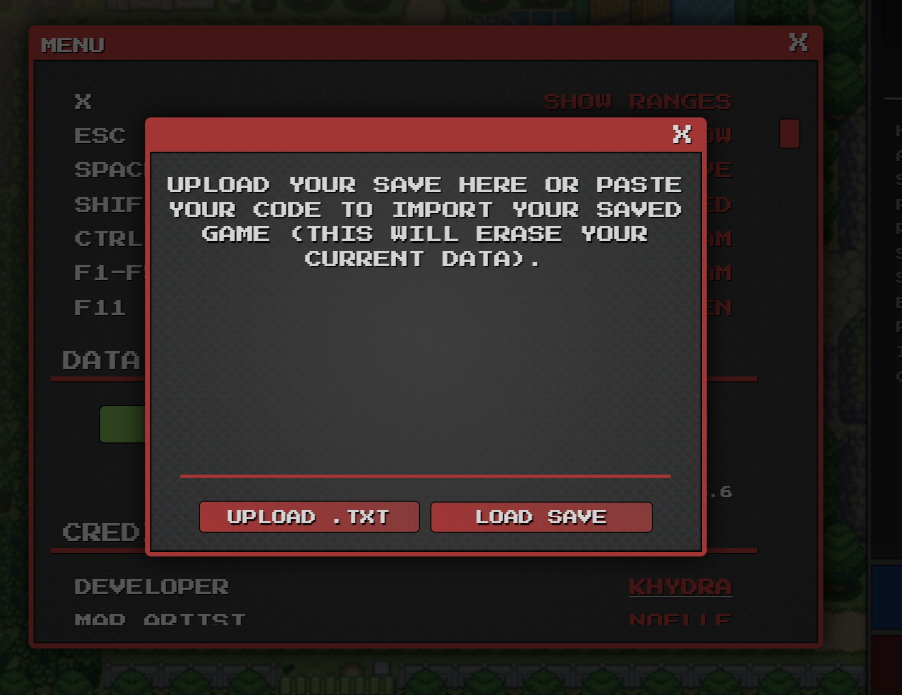
Option 1: Paste Code
Only use if you copied raw save text (not recommended).
Option 2: Upload .txt File (Recommended)
- Click Upload .txt
- Choose your saved .txt file (from your device’s storgae where you have exported your save data)
- Click Load Save
Your game will continue from where you left.
Important Notes
- Export & Import works the same on all versions
- Save files are cross-platform
- Always download instead of copying raw text
- Switching maps before export is highly recommended
- Browser version needs extra care
- PC versions are safer but still backup often
Common Problems & Fixes
“My save disappears on iPhone / iOS”
Cause:
Safari clears cache aggressively.
Fix:
Export your save every single time you stop playing.
Never trust Safari to keep your game saved.
“I pasted my save and it shows Error”
Cause:
Your clipboard cut off part of the long save code.
Fix:
Use Download .txt instead of copying text.
“Can I move my save from Browser to PC?”
Yes—and you should.
Steps:
- Export save from Browser
- Download PC version
- Open PC version → Settings → Import Data
- Upload your .txt file
This gives you a safer long-term save system.
Final Advice
If you remember only one thing:
Always export your save file.
This one habit will protect all your hard work forever.